HomeBlogBlogStrap-On Car Desk Tray for Laptop Work & Meals

Strap-On Car Desk Tray for Laptop Work & Meals

Strap-On Car Desk Tray for Laptop Work & Meals

Multifunctional Laptop Car Desk Tray with Strap: Stable Work and Meal Surface for the Road

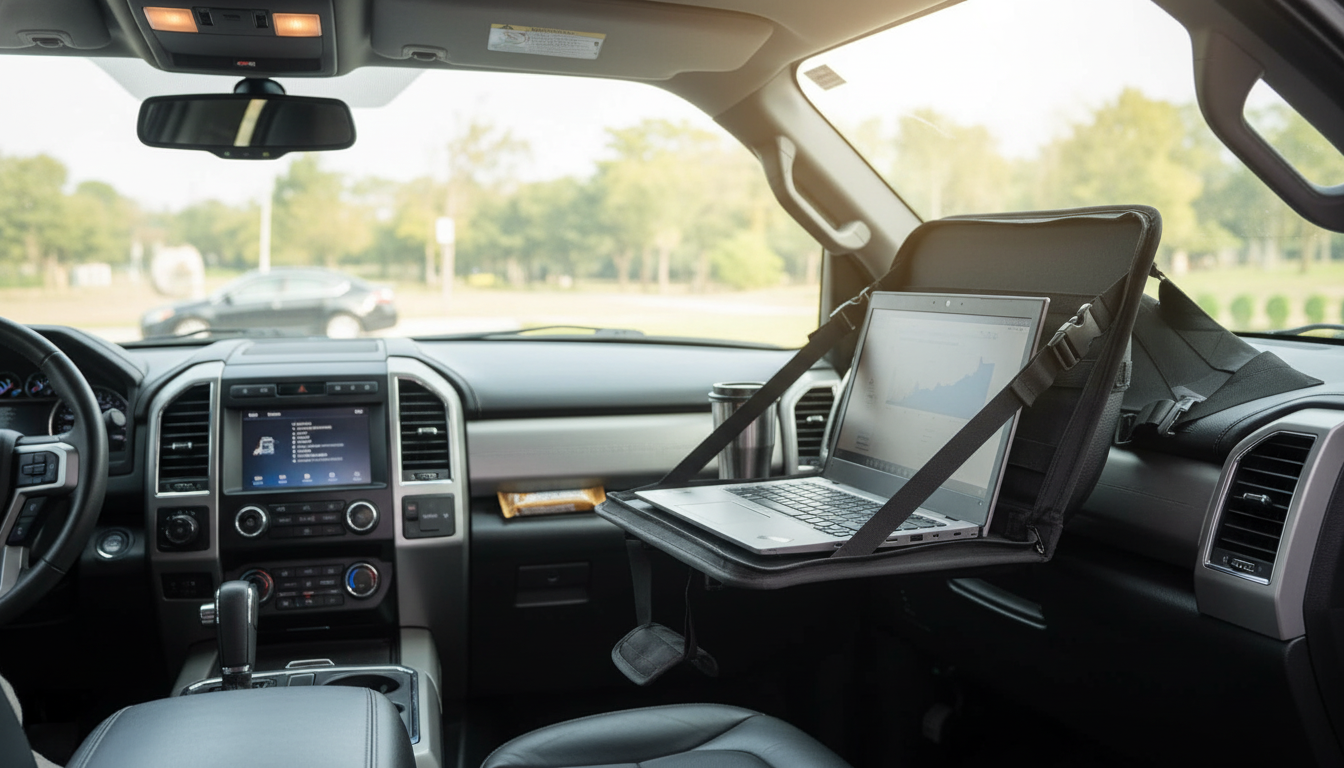
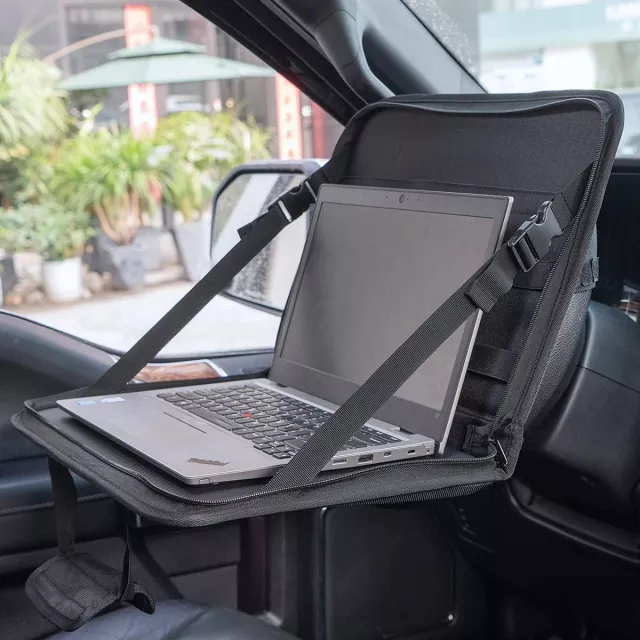
A car desk tray with a strap creates a steady surface for a laptop, tablet, paperwork, or a quick meal while parked. This multifunctional design is built for convenience: a flat platform, secure strap mounting, and compartments that help keep small items within reach. It’s a practical add-on for commuters, rideshare drivers, students, and anyone who regularly turns a parked car into a temporary workspace.

What This Desk Tray Helps With

  • Creates a level surface for typing, writing, sketching, or signing forms while parked
  • Supports quick meals and drinks with less spill risk than balancing items on a lap
  • Reduces clutter by keeping essentials (phone, pens, cards, cables) in dedicated spots
  • Improves comfort during long waits, breaks, or remote work between appointments

If your day includes waiting between stops—airport pickup lines, job-site check-ins, campus parking lots, or curbside deliveries—a stable tray can turn “dead time” into usable time without juggling items on a seat or steering wheel.

Design Features That Matter Day to Day

  • Strap-mounted stability: the strap is intended to keep the tray from sliding as hands move between keyboard, mouse, and notes
  • Flat working area: helps keep a laptop from rocking and makes handwriting more legible
  • Multi-compartment layout: convenient for storing small items that otherwise disappear into seats and door pockets
  • Easy on/off setup: designed for quick transitions between driving mode and parked-work mode

For a straightforward, all-in-one setup, see the Multifunctional Laptop Car Desk Tray with Strap. It’s built for quick installs and frequent use, especially when your car doubles as a mobile workstation.

How to Set It Up Securely (Parking-First Workflow)

  • Park fully and engage the parking brake before installing or adjusting the tray
  • Position the tray where it won’t interfere with steering wheel movement, pedals, or airbags
  • Thread and tighten the strap so the tray sits level and doesn’t tilt when pressure is applied
  • Test stability with light pressure first, then place the laptop or items once the surface stays steady
  • Keep the tray off the driver’s lap while the vehicle is in motion; remove or stow before driving

Stability comes from two details: a level mounting position and proper strap tension. If the tray feels springy, reposition it so more of the surface is supported and retighten until it stays flat under normal typing pressure.

Best Use Cases (Work, Study, and Breaks)

  • Mobile office: emails, spreadsheets, client notes, invoice writing, and document review during parked stops
  • Study sessions: reading, flashcards, or tablet-based coursework while waiting for pickups
  • Meal and snack station: a more stable alternative to balancing takeout on a seat or lap
  • Family and travel: kids’ coloring, travel journaling, or organizing trip documents in one place

Creators and resellers who do quick photo uploads on the go may also like keeping a simple reference handy, such as Snap It in Style: iPhone Outfit Photo Checklist – How to Take Outfit Photos with iPhone, while using the tray as a steady writing and editing surface.

Sizing, Fit, and Laptop Compatibility

  • Measure typical device footprint (laptop or tablet) to ensure comfortable clearance for typing and ventilation
  • Check the available distance to the steering wheel or passenger area based on intended mounting position
  • If using a mouse, plan space for a mouse pad area or consider a compact travel mouse
  • For heavier laptops, prioritize a firm strap tension and a mounting position that stays level

Quick Compatibility Checklist

Consideration What to check in your car Why it matters
Mounting position Driver or passenger-side location; clearance from wheel, shifter, and vents Avoids interference and improves comfort
Device size Laptop width/depth vs. usable tray area Prevents overhang and wobble
Seat distance How far the seat can slide back while keeping a comfortable reach Supports posture and reduces wrist strain
Storage needs Pens, cables, cards, phone, snacks Keeps the surface clear for work

Comfort and Ergonomics Tips While Parked

  • Raise or lower the seat to keep forearms roughly parallel to the tray surface while typing
  • Use a small cushion or lumbar support to reduce lower-back fatigue during longer sessions
  • Take short breaks to move shoulders and wrists, especially when typing in a confined space
  • Keep ventilation in mind: avoid blocking laptop vents and consider a heat-resistant mat if needed

A small posture tweak can make a big difference: slide the seat back until your shoulders relax, then bring the tray close enough that you’re not reaching forward with bent wrists.

Care, Cleaning, and Storage

For anyone who snack-preps or keeps small items organized, an airtight container can help reduce crumbs and odors in the cabin—consider pairing your car setup with the Vintage Embossed Glass Storage Jar with Airtight Seal – 23.7 oz for shelf-stable snacks at home or in the office before heading out.

Safety Notes for In-Car Work Surfaces

For additional guidance on why device use behind the wheel is risky, review official resources from the National Highway Traffic Safety Administration (NHTSA) and the Centers for Disease Control and Prevention (CDC).

FAQ

Can the desk tray be used while driving?

No—use it only while parked. Working or eating while driving increases distraction and crash risk, so stow the tray before you put the vehicle in motion.

Will it fit most laptops and tablets?

It depends on your device footprint and your car’s available clearance. Measure your laptop/tablet and confirm there’s enough room for stable placement, comfortable reach, and ventilation.

How do you keep the tray from wobbling?

Tighten the strap, ensure the tray is mounted level, and test stability with light pressure before setting your laptop down. If it still tilts, reposition the mounting point for better support and retighten.

Was this article helpful?

Yes No
Leave a comment
Top

Yay! 10% Off Just for You!

Join our community and enjoy 10% off your first order. Subscribe for exclusive deals!

Shopping cart

×